Learn
Getting started
Make a project from a template, see what World Builder wrote to disk, and find your way around the window.
In ten minutes you have a project on disk, under version control, with a chapter open.
Pick a template
World Builder opens on a welcome screen with two buttons: Open Project and New Project. New Project lists the templates. Choose one, click Create Project, and pick a folder. The folder has to be empty. World Builder will not write a template into a directory that already has files in it.
There are four templates.
- Fantasy Novel. Ancient magic, warring factions, mythical creatures. The world is called The Shattered Realm, and it is the one the screenshots on the front page come from.
- Science Fiction Novel. Interstellar travel, alien species, advanced technology. The world is called The Last Frontier.
- Tabletop RPG. A campaign: adventure hooks, NPCs, magic items, dungeon encounters. The world is called The Sunken Kingdoms.
- Blank Project. A world name and nothing else.
Nothing asks you for a name. The template brings one, and it is the first line of world.yaml in the folder you chose.
A template is a starting set of folders and example parts. Delete what you do not want. Nothing in a template is special once it is on disk.
What is on disk now
Open the folder in Finder. Say you took Fantasy Novel. world.yaml sits at the top. Next to it is one folder per kind of world part: characters/, locations/, magic/, species/ and the rest, each with a file per part and its own world.yaml. manuscripts/ holds your first manuscript, and the manuscript’s folder holds its chapters. Every file is Markdown or YAML. Open any of them in any editor. A blank project has the same shape and almost nothing in it: world.yaml, and a research-notes/ folder with no notes in it yet.
The folder is already a Git repository with two revisions in it: an empty first commit, then a second called “Created from template” holding every file the template wrote. Nothing is left uncommitted. You did not run a command, and you never will. See Revisions.
That .git folder is what makes the directory a project. Open Project refuses a folder that does not have one, even if it has a world.yaml.
Find your way around
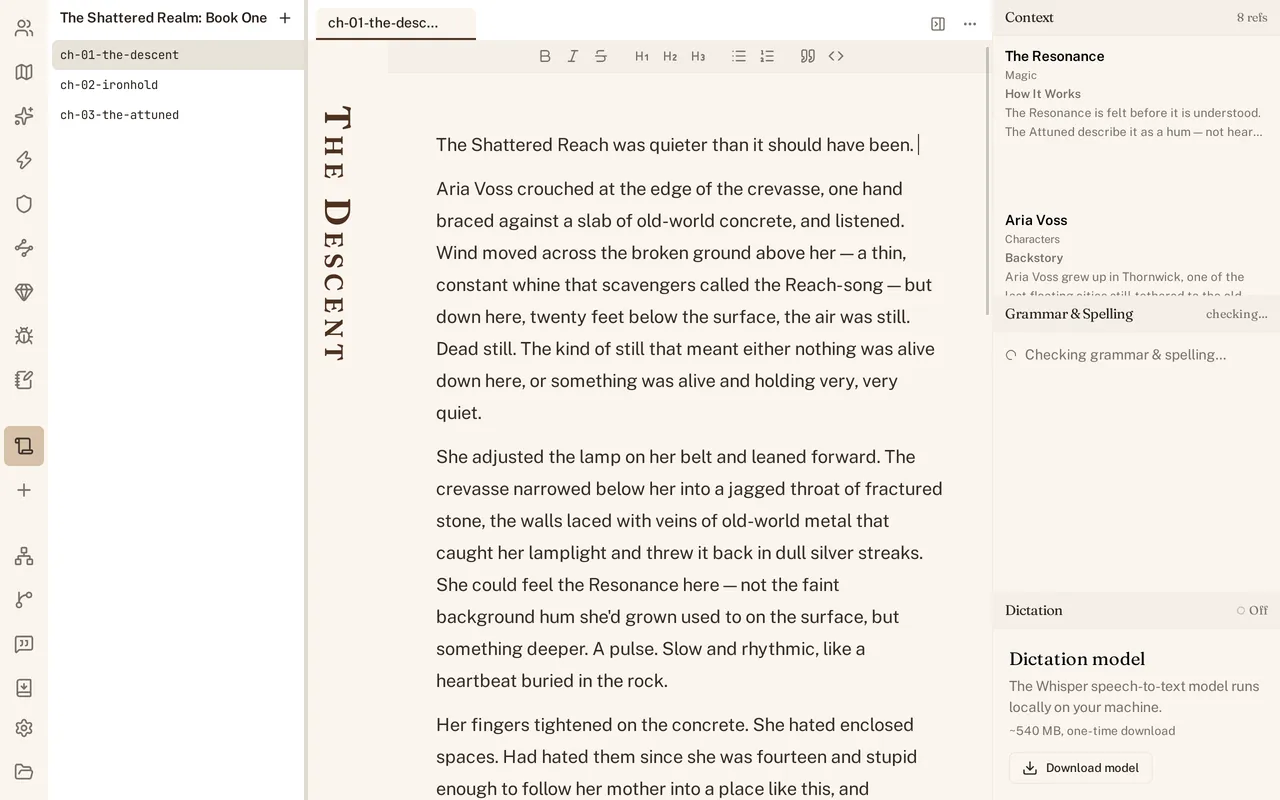
Down the far left is the navigation rail: one icon per kind of world part, then one per manuscript with a + to start another, then Relationships, Revisions, Reviews and Export, and Settings at the bottom. Click an icon and its list opens in a panel beside the rail. Click the same icon again and the panel closes. Every cold start begins with the panel closed.
The middle column is tabs. A chapter, a character, the revisions page and a review each open in their own tab. Cmd+W closes the one you are on and Ctrl+Tab moves to the next. Reopen the same project and your tabs come back, on the page you left. Open a different world and the strip starts empty.
The right column is the dock: Context at the top, Grammar & Spelling below it, Dictation at the bottom.
Four shortcuts cover most days. Cmd+B opens the Characters list, or closes whichever list is open. Cmd+Shift+B hides the dock. Cmd+, opens Settings. Cmd+Shift+D starts and stops dictation.
Write something
Click a chapter in the manuscript’s list and type. World Builder saves as you go. There is no save command and no save shortcut.
Stop typing for ninety seconds and it writes a revision of what you changed. Ninety is the default; the number is autoRevisions.idleWindowSeconds in the project’s world.yaml.
See The workspace for tabs, panels and session restore in detail, or Set up your world to change which kinds of part your world has.