Learn
Revisions
World Builder writes a revision while you work, or whenever you ask it to. Read any diff. There is no restore button.
You can read your project's history, write a revision on your own terms, and know exactly what to do if you ever need an old version back.
Automatic revisions and the idle window
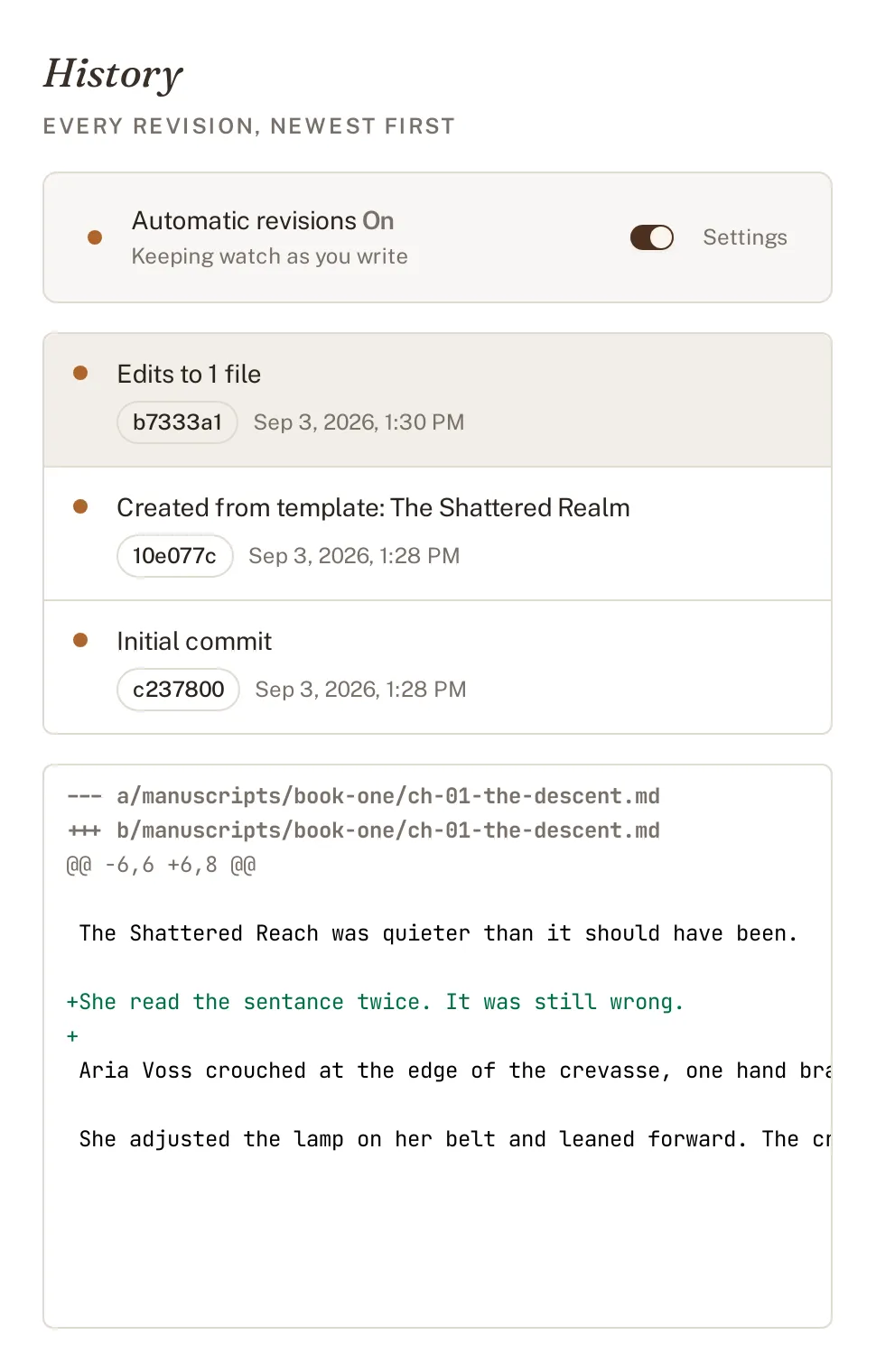
With Automatic revisions on, the default, World Builder writes a revision for you after you stop typing. It waits for an idle window, ninety seconds by default, before it commits what changed; keep typing past that mark and the clock resets. The toggle for this lives at the top of the Revisions page, and it survives closing and reopening the project.
Write one yourself
You do not have to wait for the idle window. A “new revision” action commits right now, on demand, useful before you try a rewrite you might want to back out of.
Choose which files go in
A revision does not have to include everything that changed. Before it commits, you can select which files go in with per-file checkboxes and preview the working diff for what you are about to commit, so an automatic revision at the end of a long session does not sweep in an unrelated file you touched by accident.
Read a diff
Click any revision in the list and its diff appears below: the file path, the surrounding lines for context, and the actual change, added lines and removed lines, same as any diff. Revision messages are written for you by the local model where one is running; without it, you get a plain fallback like “Edits to 1 file”.
What is not there: no restore button, and how to check out by hand with git
There is no restore button. World Builder shows you every revision and every diff, but it will not roll your chapter back to an earlier one for you. That is a deliberate line, not a missing feature. The project folder is a real git repository under the hood, with no shell git required for the app’s own history to work, and you can always open it with any git tool you already have and check out an old version by hand if you genuinely need one.
See Your files on disk for what that folder looks like from outside World Builder.