Learn
Choosing a local model
World Builder measures your machine, recommends a model that will run well on it, and lets you try before you commit to it.
You understand why World Builder recommended the model it did, and how to check that it actually runs before you rely on it.
What World Builder measures
Before it recommends anything, World Builder looks at the machine it is actually running on: how much memory you have, how many CPU threads, and what kind of graphics hardware, a discrete card with its own memory, an integrated chip that shares system memory, or Apple’s unified memory on a Mac. Each of those changes the math for how much of a model can run well.
The recommendation
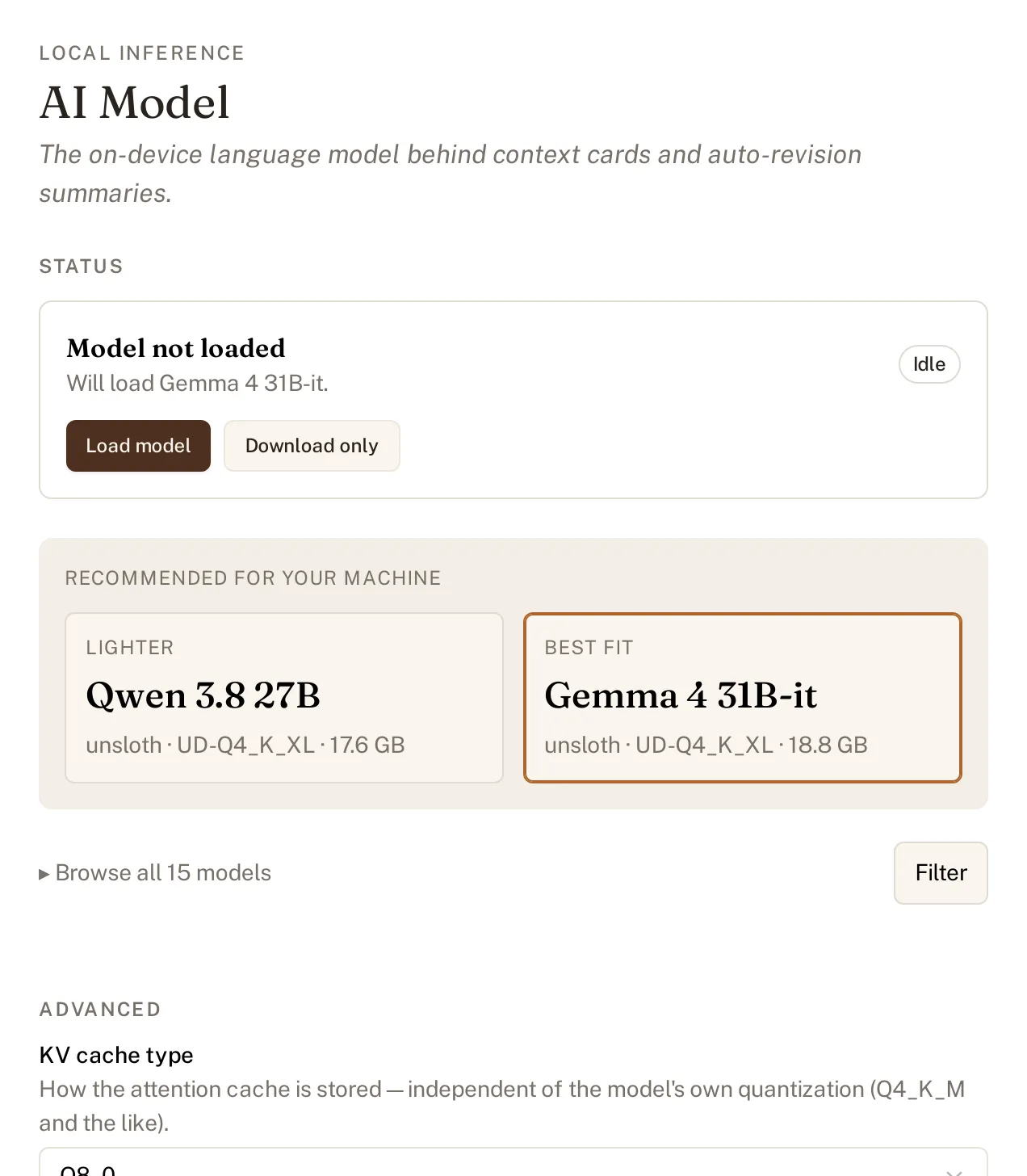
From that, it picks a model sized for your machine and works out how much of it to hand to the graphics hardware versus the processor, and how much context, how much of your manuscript it can hold in mind at once, it can afford to give it. The AI Model settings page shows this as a Best fit pick, with a lighter alternative next to it if you would rather trade some quality for speed or a smaller download.
The catalogue and the rescue quantizations
Best fit is not your only option. Browse the full catalogue, fifteen models as of writing, from a few billion parameters up past thirty, and filter it yourself. Several ship with a rescue quantization: a smaller, more compressed version of the same model for a machine that cannot fit the standard one, so “too big for my laptop” has an answer besides going without.
Run the smoke test
Before you trust a model with real work, you can run a quick smoke test, a short generation that proves the model actually loads and produces output on your hardware, rather than finding out it does not the first time you need it for a revision summary or a context card.
Turn off automatic downloads
On stock settings, a model downloads automatically the first time something needs it, loading it from the settings page, or a feature like automatic revision summaries reaching for it on its own. The download is the model file itself, once, and it is a setting you can turn off if you would rather choose and download a model yourself before anything tries to fetch one for you.
See Revisions for one thing the local model writes for you, and Dictation for the separate models that handle speech.